User Guide
New here? Start with the illustrated first watch-party tutorial for installation, screenshots and a complete two-user example.
OpenWatchParty 0.7.0 targets Jellyfin ABI 12.0.0.0 and is validated on Jellyfin 12.1. See the compatibility matrix for other release lines. The Jellyfin plugin and session server are separate components; update the session server to 0.7.0 to receive its security fix.
Getting Started
Before using OpenWatchParty, ensure your Jellyfin administrator has:
- Installed the OpenWatchParty plugin
- Started the session server
- Confirmed that the plugin dashboard reports the client and session server as ready
Creating a Watch Party
- Start playing a video - Open any movie or TV episode in Jellyfin
- Find the Watch Party button - Move the pointer over the video to reveal the player header, then select the Watch Party icon (a screen with two viewers) next to Cast
- Click to open the panel - A slide-out panel appears
- Click “Create Room” - The room is created and named after you (
<you>'s room) - Wait for participants - The room appears in everyone’s “Available rooms” list and on the Jellyfin home page
The Watch Party button in the Jellyfin header opens the same panel, but Create Room stays disabled, with a hint, until something is playing: a room always starts from the video you are watching.
The ? next to the panel’s close button shows a short help. On the first run in a browser, the panel opens below the header button with this help; it is not shown again in that browser.
As the host, you control playback for everyone. When you play, pause, or seek, all participants follow. Guests can play and pause too, for the whole room.
Joining a Watch Party
From the Header
- Click the Watch Party button in the Jellyfin header - Next to SyncPlay and Cast, with Search on the pages that show the app bar; nothing needs to be playing
- Find the room - Rooms appear in the list with participant counts
- Click “Join” - OpenWatchParty starts the room’s movie and syncs you to the host’s position
A room marked No media has no video to join yet. Ask the host to start a video and create a room from the player.
From the Player
- Open any video - The same video the host is watching
- Click the Watch Party button - Opens the panel
- Find the room - Rooms appear in the list with participant counts
- Click “Join” - You’ll automatically sync to the host’s position
From the Homepage
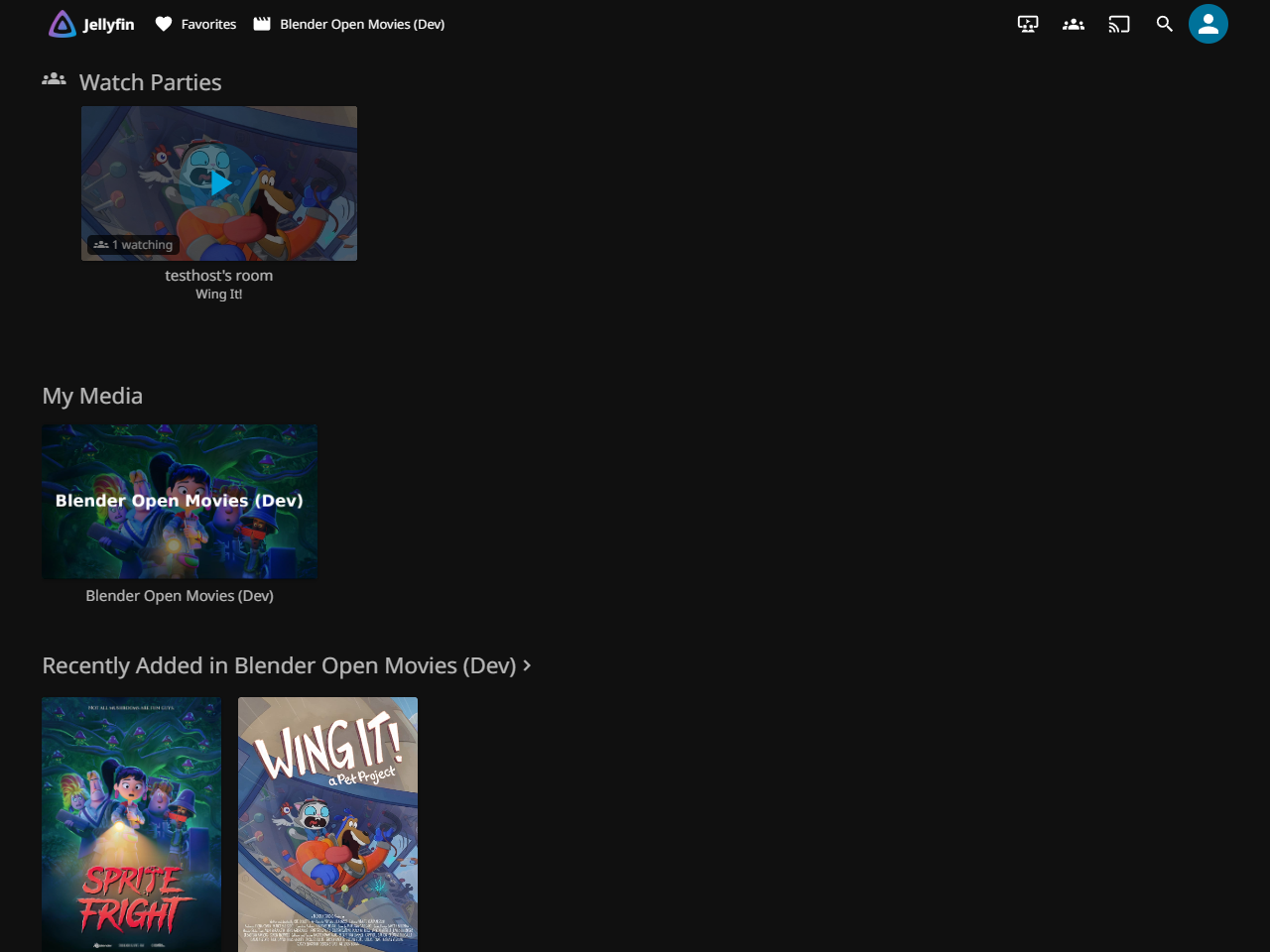
The Jellyfin homepage displays active watch parties in a dedicated “Watch Parties” section, making it easy to discover and join ongoing sessions.
How it works:
- Go to Jellyfin home - Active watch parties appear in a dedicated section below your media libraries
- Browse party cards - Each card shows:
- Media cover image (movie poster or episode thumbnail)
- Room name (generated from the host’s username)
- Participant count (e.g., “2 watching”)
- Play button overlay for quick join
- Join options:
- Select the Join button (play icon) on the card - Opens the room’s media and joins automatically
- Select the card itself - Opens the media details without joining; start the video, then join from the player panel
What happens when you click:
- The Join button starts the room’s current media and attempts to join automatically. If you opened the media details instead, start playback there.
- In the player, open Watch Party and select Join if you are not already in the room
- Your playback syncs to the host’s current position after a brief catch-up period
Notes:
- The Watch Parties section only appears when there are active rooms
- Cards refresh automatically every 5 seconds
- If a room closes while you’re viewing the homepage, the card disappears
- You must be logged into Jellyfin to see and join watch parties
Inviting People with a Link
As the host, the room bar has an Invite button (share icon) next to Chat. Selecting it asks the session server for a short-lived ticket, builds a link to your Jellyfin server, and copies it to the clipboard with an “Invite link copied to the clipboard” toast.
- Click Invite - The link is ready on your clipboard
- Send it to a friend (chat, email, anything)
- They open it - Jellyfin Web loads, joins your room automatically once they are signed in, and syncs to your position
The link looks like https://your-jellyfin/web/?owp_invite=<ticket>. The ticket is scoped to that one room, expires after the configured Invite TTL (1 hour by default, 60 seconds to 24 hours), and stops working when the room closes. It never contains your Jellyfin password, API token, or session token.
Guests do not see the Invite button. If an invite is invalid or expired, the client shows a toast and leaves you on the normal room list.
Invite links require JWT authentication (a configured plugin secret). In insecure development mode the button reports that invites are unavailable.
Host Controls
As the host, your actions control everyone:
| Action | Effect |
|---|---|
| Play | All clients start playing |
| Pause | All clients pause |
| Seek | All clients jump to that position |
| Invite | Copies a short-lived room invite link |
| Close panel | Room stays active |
| Leave the player | Host role passes to the earliest compatible participant; the room stays open |
| Connection drops | Your host role is held for 10 seconds while the client reconnects; after that it passes to a compatible participant |
| Leave room | When another participant can take over, leaves while the room stays open with that participant as host |
| Close for everyone | Room closes for everyone |
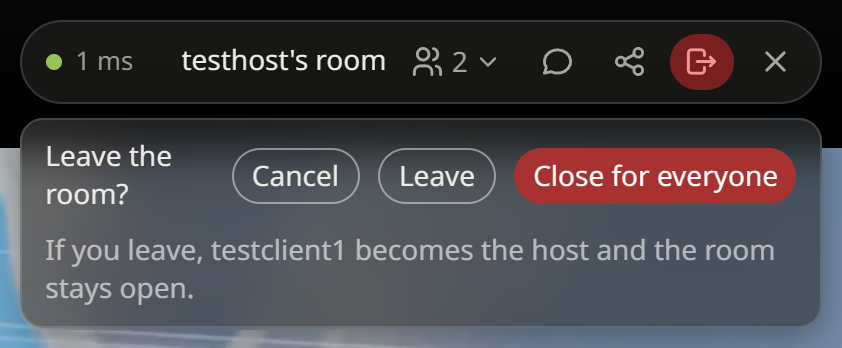
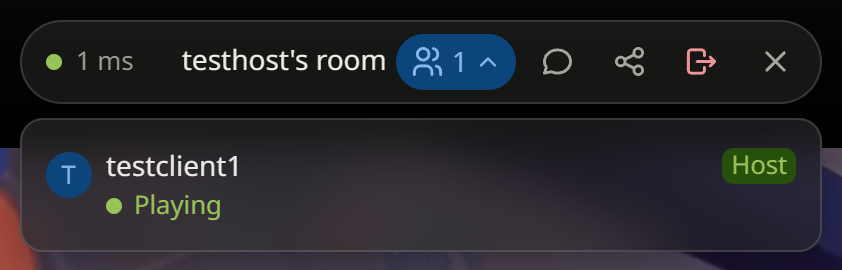
The leave confirmation names the participant who will take over before you leave. The promoted participant then sees the Host badge in the room’s participant list.
Starting together
A play waits until everyone can play: until each one’s video has loaded (the server may still be converting it) and isn’t stalled. Meanwhile the room bar says Waiting for Ana in place of the room’s name; hover it to see why each one isn’t ready. The room starts on its own when everyone is ready, or after 20 seconds without the ones still loading. The host, or a guest sharing the controls, can select Waiting for…, or press Play again, to start right away.
The first play of a room created paused, and of an episode or video the room moves to that doesn’t go on the same series, counts down: Starting in 3, 2, 1 shows in the same place, then everyone starts together. The next episodes of a series go on without it. With the panel closed, the same shows on its own where the bar would be.
The chat says, as SERVER, who the room waits for and why, who got ready and after how long, and who the room started without. Only that last one counts as unread.
This needs a session server and clients with the feature. With an older client or server, a play waits for the others for 2 seconds at most, without a countdown.
Participant Experience
As a participant:
While you are in a room, seeking is locked to the host: the timeline, skip, chapter, rewind, and fast-forward controls are dimmed, and keyboard seeking is ignored. Play and pause are shared: your pause pauses the whole room, the host included, and anyone’s play resumes everyone. Only while the room waits for the host’s stream (after a track change, for example) is the play control dimmed and does nothing.
Shared controls require a compatible server and host. With an older host or server, your pause stays local and Play is locked while the room is paused. Resuming your local pause catches you up to the room. Upgrading clients does not grant guests permission to seek or close the room.
| What Happens | What You See |
|---|---|
| Host or a guest plays | Video starts automatically |
| Host or a guest pauses | Video pauses automatically |
| Host seeks | Video jumps to new position |
| Host leaves | A compatible participant becomes host; otherwise the room closes |
| Host reloads or briefly loses connection | The same signed-in user remains host when they reconnect within 10 seconds |
| Drift detected | Playback speed adjusts (0.90x-1.15x) to catch up |
The Panel Interface
The panel follows the Jellyfin display language; English, Spanish, French and German (en, es, fr, de) are included.
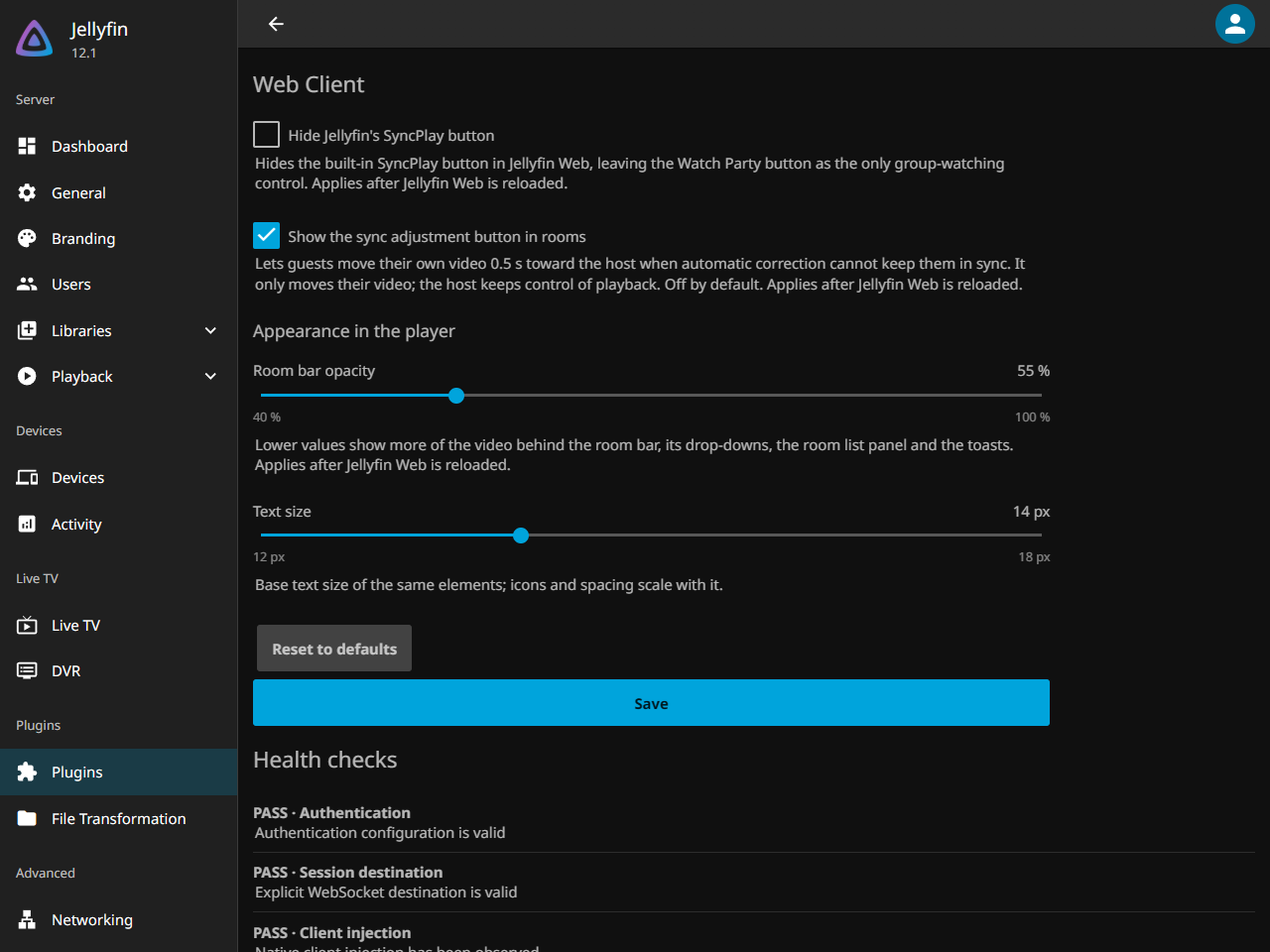
Over the player, the room bar, its drop-downs, the lobby panel, the up-next strip and the notifications are semi-transparent, so the video shows through them, blurred. The administrator sets their opacity and text size under Web Client in the plugin settings (55 % and 14 px by default). If your system asks apps to reduce transparency, they stay opaque.
Lobby View (Not in a room)
- Room list - Active watch parties with names and participant counts; rooms without media are marked “No media”
- Create room - “Create Room” button; the room is named after you. Disabled until something is playing
- Connection status - Online/Offline indicator
- Close (X) - Hides the panel; open it again from the header or the player button
In-Room View
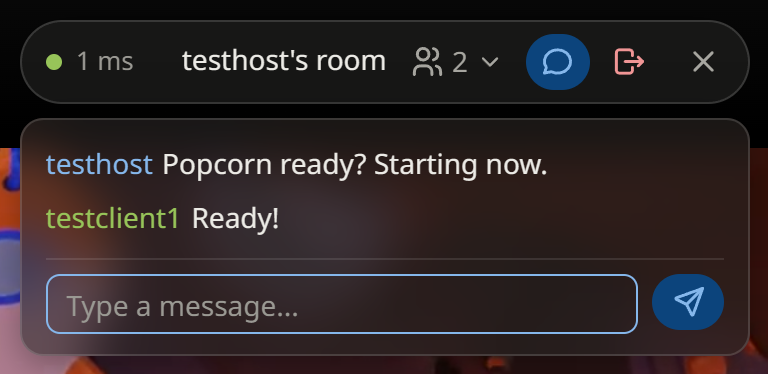
In a room the panel becomes a single bar at the top right (below the header when opened from it). From left to right:
- Sync dot - Your sync status; hover it for the details (the host’s is always green)
- Latency - Round-trip time from you to the session server, in milliseconds
- Room name - Current watch party name; hover it if it is cut short
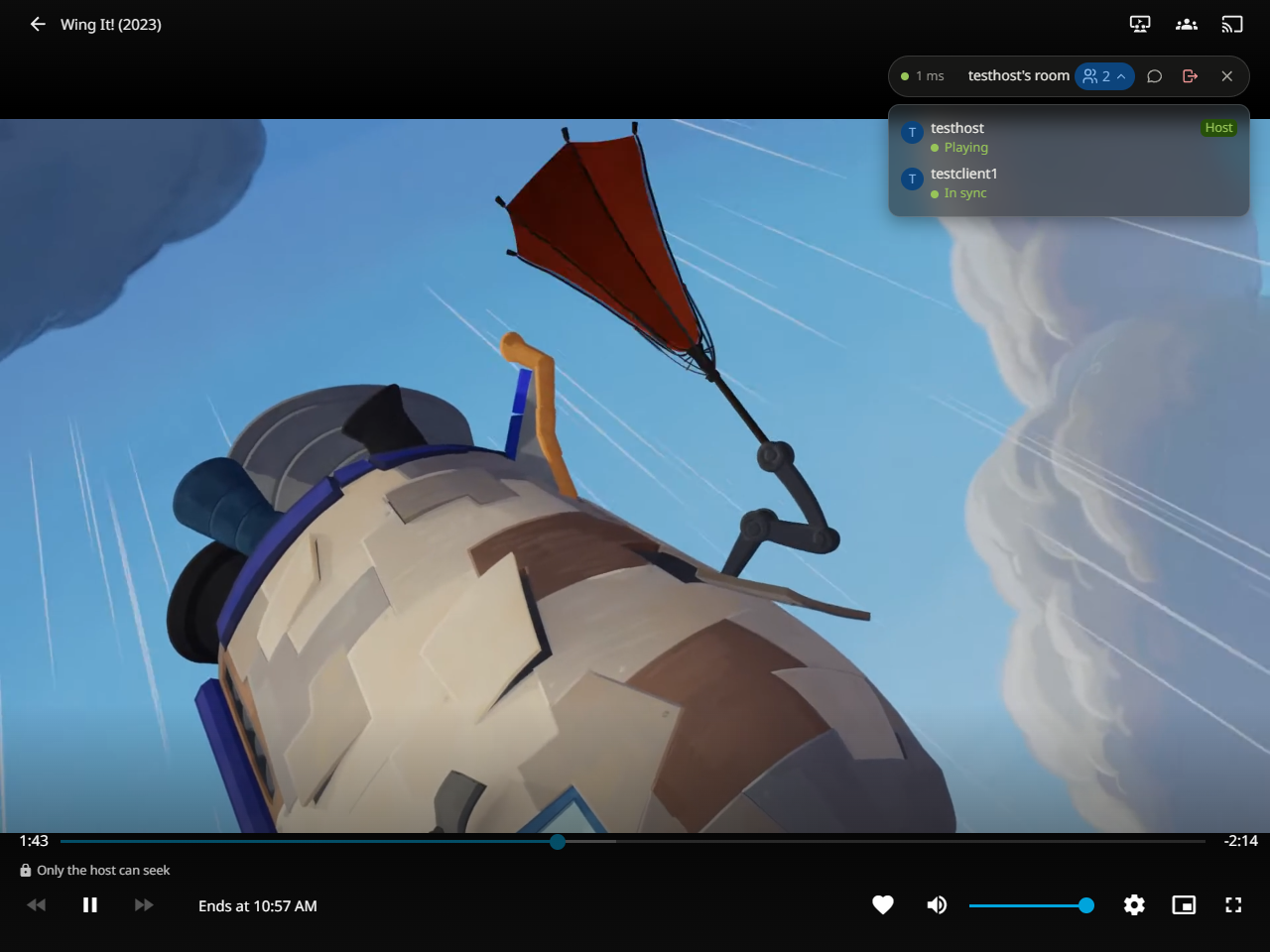
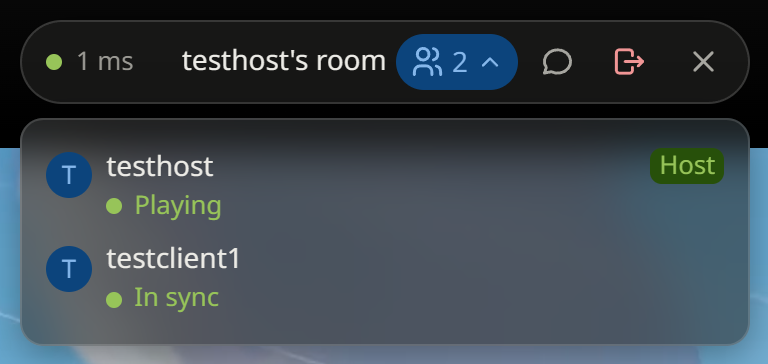
- Participants (people icon and count) - Opens the list of who is watching, with a Host badge on the host and each person’s status under their name (older session servers show only the number of people)
- Chat (chat icon) - Opens the chat; a red badge counts unread messages
- Sync adjustment (circular arrows, guests only, when the administrator enables it) - Shows how far you are from the host and lets you nudge your video toward them; see Sync adjustment
- Queue (list icon, while the room has a queue) - Opens the room’s queue; see Watching a series
- Invite (share icon, host only) - Copies a short-lived invite link that joins people to this room automatically
- Leave (exit icon) - Guests confirm leaving normally. On a compatible server, a host with other participants can choose Leave to pass the room to the named next host or Close for everyone to end it. A host who is alone, or connected to an older server, sees the existing Close room confirmation.
- Close (X) - Only hides the bar: you stay in the room
Participants, chat, the sync adjustment, the queue and the leave confirmation open one at a time below the bar; select the same icon again to close it.
Clicking or tapping outside the panel closes it, like Close (X). On the video itself a click or double click only closes the panel, so it does not pause the room. In the player, the panel hides and comes back with Jellyfin’s controls, as it was; it stays while you type in the chat or while the up-next countdown of the queue shows.
The participants list shows how each person is doing, with a colored dot:
| Status | Color | Meaning |
|---|---|---|
| Playing / Paused | green / grey | The host, with the room’s playback |
| In sync | green | A guest following the host |
| Catching up | amber | A guest adjusting their speed to catch up |
| Buffering | amber | Waiting for the video to load |
| Loading | blue | Joining, or waiting for the room’s media |
| Needs to press Play | red | The browser blocked autoplay: tell them to press Play |
| Not watching | grey | In the room without the video open |
A status changes after it has held for about a second. People on an older version of OpenWatchParty show no status.
Watching a series
While the room plays an episode, the host’s player fills the room’s queue with the next episodes of the series, in Jellyfin’s order across seasons, up to five episodes ahead, and tops it up each time the room moves to the next one. The room queue can contain up to 20 items, including the current episode. Episodes missing from the library are skipped, and one the host removes doesn’t come back, even after the host reloads the page or someone else becomes the host. A room playing a movie has no queue and works as before.
- Queue (list icon in the bar) opens the list: watched episodes dimmed with a check, the one playing highlighted as Watching, and the upcoming ones numbered.
- The host can go to the Previous or Next episode, and play, move up, move down or remove an upcoming one. Guests see the list only.
- Up next: when the host’s video reaches the credits (an Outro segment, as Intro Skipper marks them), or 15 seconds before the end of an episode without them, everyone sees the next title and a 10-second countdown: below the bar, or on its own over the video while the panel is closed. The host can Cancel it or go to the Next episode at once. Pausing the room or seeking back before the credits cancels it; it starts again if the room plays on in the credits, unless the host cancelled it on that episode.
- When the room moves to another episode, everyone loads it and starts from the beginning together, as when joining a room.
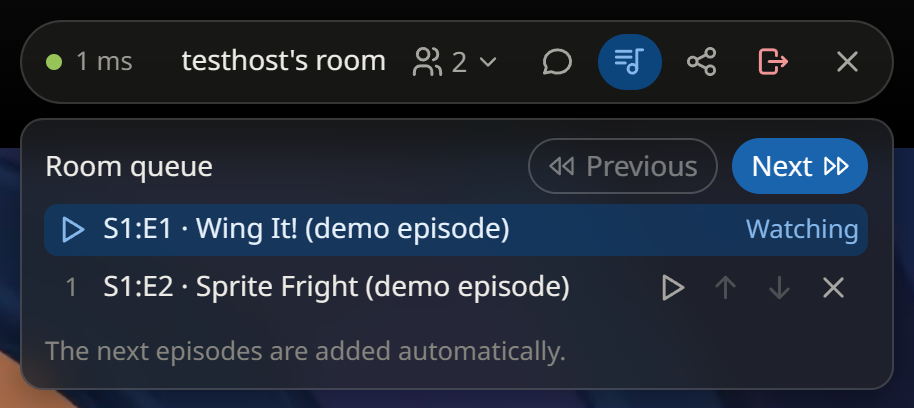
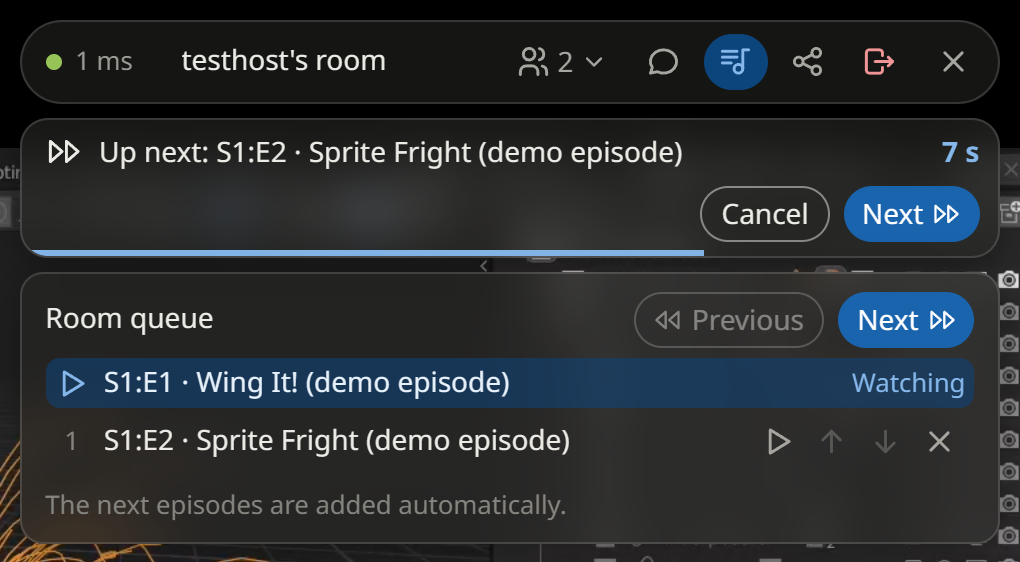
The queue needs a session server and clients with this feature. People on an older version still follow the room to the next episode, without seeing the queue.
Using Chat
The chat feature allows you to communicate with other watch party participants in real-time.
Sending Messages
- Type your message in the chat input field
- Press Enter or click the send icon
- Your message appears for all participants
Chat Features
- Username display - Messages show the sender’s Jellyfin username
- Timestamps - Hover a message to see when it was sent
- Unread badge - A red badge on the chat icon counts messages that arrived while the chat was closed
- SERVER lines - OpenWatchParty’s own notes about starting together, with a tag and in italics; only “Started without…” counts as unread
- Message limit - Messages are limited to 500 characters
Notes
- Chat history is not saved; late joiners won’t see previous messages
- The chat input doesn’t interfere with video player controls
Sync Indicator
Participants see a sync status dot in the room bar that shows how well their playback is aligned with the host. Hover it for the status name.
| Status | Indicator | Meaning |
|---|---|---|
| In sync | Green dot | Your playback matches the host |
| Out of sync | Yellow pulsing dot | Catching up via playback speed adjustment |
| Waiting for sync | Spinner | Synchronized play is being scheduled |
The “Out of sync” state is normal for a few seconds after joining or after the host seeks. The system automatically adjusts your playback speed to catch up.
Sync adjustment
When the administrator enables Show the sync adjustment button in rooms, guests get a circular-arrows icon in the room bar. It opens a drop-down that shows:
- how far you are from the host, for example 1.2 s behind the host, or In sync with the host;
- what the automatic correction is doing, for example Automatic correction: 1.15× speed for 8 s.;
- a Move ahead or Move back button.
The button moves your video up to 0.5 s toward the host, never past them. Use it when the automatic correction keeps you out of sync for a long time (a slow network, a background tab), instead of leaving and rejoining. It only moves your own video: the host still controls playback, and nobody else is affected.
The button does nothing while you are in sync, while the room is paused or loading, or while a command from the host is being applied (the drop-down then says Following the host…). It also stays within the part of the video already loaded, so it never makes you wait for more video.
The administrator enables the control under Dashboard → Plugins → OpenWatchParty → Settings → Web Client. This setting is off by default.
Notifications
OpenWatchParty displays toast notifications to keep you informed about room activity.
System Notifications (Center)
These appear briefly in the center of the screen:
- “Host resumed playback” - The host started playing
- “Host paused playback” - The host paused
- “A guest resumed playback” / “A guest paused playback” - A guest played or paused the room
- “A participant joined the room” - Someone joined
- “A participant left the room” - Someone left
- “You are now the host” / **“
is now the host"** - Host control passed to another participant - “Room closed” - The host explicitly closed the room, or nobody with a compatible client could become host
- “Invite link copied to the clipboard” - The host’s invite link is ready to share
Chat Notifications (Bottom-Right)
When the chat is closed, incoming messages appear as toasts in the bottom-right corner, so they do not cover the room bar:
- Shows the sender’s username and message
- Stacks up to 5 messages
- Click to dismiss, or they fade after 5 seconds
Tips for Best Experience
For Hosts
- Wait for everyone - Check participant count before starting
- Announce pauses - Use external chat to communicate
- Avoid rapid seeking - Give clients time to sync
For Participants
- Same media - Make sure you’re watching the same title
- Stable connection - WiFi or wired connection recommended
- Let it sync - Wait a few seconds after joining before judging sync
Network Considerations
- Session URL - Each browser must reach the configured WebSocket URL. For guests outside your network, publish it as
wss://through a reverse proxy; never expose raw port 3000 to the internet - WebSocket support - Some firewalls block WebSocket connections
- HTTPS - Use WSS (secure WebSocket) in production
Troubleshooting
“Watch Party button not visible”
- Open Dashboard > Plugins > OpenWatchParty and verify client injection
- Restart Jellyfin after installing or upgrading the plugin
- Try refreshing the page (Ctrl+F5)
“Cannot connect to server”
- Check that the session server is running
- Verify the WebSocket URL is correct
- For remote guests, check that the reverse proxy routes
/wsto the session server
“Out of sync with others”
- This is normal for a few seconds after joining
- If persistent and your administrator enabled it, use the sync adjustment; otherwise try leaving and rejoining the room
- Check your network connection quality
“Room closed unexpectedly”
- The host closed the room, or left when no participant had a compatible client for host transfer
- Server may have restarted
- Create a new room to continue
“Invite link expired or invalid”
- Invite links only live for the configured Invite TTL and stop working when the room closes
- Ask the host for a fresh link; opening an expired link leaves you on the normal room list with a toast
- The Invite button is unavailable in insecure development mode
For more troubleshooting, see Troubleshooting Guide.