Installation Guide
Recommended: Guided Setup
For screenshots of every step, including a two-person demonstration, follow
the illustrated first watch-party tutorial.
Download owpctl and run the local graphical assistant:
owpctl setup --web
This uses the current user’s configuration and Docker access. For a system-wide installation, run sudo owpctl --scope system setup --web and open its printed one-time URL if the browser does not start. See Guided Setup and owpctl for download verification, headless installation, diagnostics, upgrades and uninstall. The remaining sections on this page are manual and advanced alternatives.
Prerequisites
- Jellyfin Server version compatible with your OpenWatchParty build (see Compatibility Matrix)
- Docker and Docker Compose (recommended)
- Port 3000 available for the session server
- Admin access to Jellyfin
Version Selection
- OpenWatchParty
0.7.0targets Jellyfin ABI12.0.0.0 - Jellyfin 10.11 line: use the compatible
0.3.4plugin release; do not install the Jellyfin 12 plugin on that line - Validated environment: Jellyfin packages
12.0.0and image12.1 - Session protocol: version
1; it is independent of the plugin ABI - Source builds: Rust
1.88.0or newer for the session server andowpctl
Choose Your Installation Path
| You are… | Recommended path |
|---|---|
| Running an existing Jellyfin server | Install the plugin repository, then deploy the pre-built session-server image |
| Evaluating OpenWatchParty locally | Use the development stack documented under Development |
| Contributing code | Clone the repository and use just up |
just upis a development command. It starts a separate Jellyfin test instance and must not be used to install OpenWatchParty into an existing Jellyfin deployment.
Quick Start For An Existing Jellyfin Server
1. Install The Jellyfin Plugin
- Open Dashboard > Plugins > Repositories.
- Add:
https://mhbxyz.github.io/OpenWatchParty/jellyfin-plugin-repo/manifest.json
- Open Catalog, install OpenWatchParty, and restart Jellyfin.
The plugin includes native client-script injection. File Transformation and Custom HTML are optional compatibility fallbacks, not required installation steps.
Automatic updates currently remain disabled in release metadata. See plugin updates and rollback for the publication prerequisites, explicit opt-in and disposable upgrade checks.
2. Start The Session Server
JWT_SECRET="$(openssl rand -base64 32)"
docker run -d \
  --name owp-session \
  --restart unless-stopped \
  -p 127.0.0.1:3000:3000 \
  -e ALLOWED_ORIGINS="https://jellyfin.example.com" \
  -e JWT_SECRET="$JWT_SECRET" \
  ghcr.io/mhbxyz/owp-session-server:0.7.0@sha256:8e925305e4fc750ad08c1bf50318ea4fa45996c6130a63486cbaf4a9d4b41c20
Keep the generated value temporarily. It must be entered in the plugin configuration in the next step.
The 0.7.0 session-server release fixes GHSA-fjpr-3g28-27r9. Updating only the Jellyfin plugin does not update or fix an older session server.
3. Configure And Verify
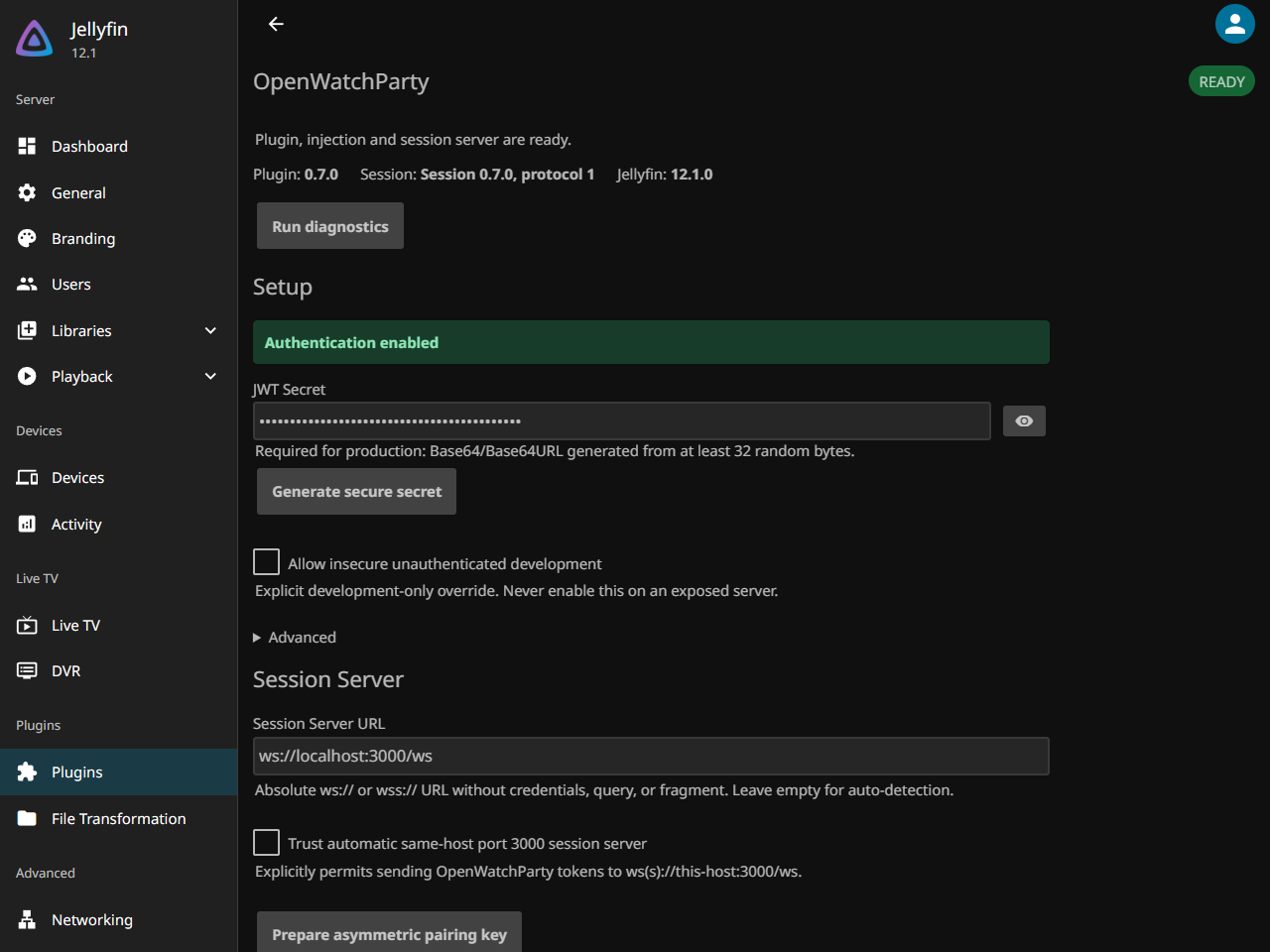
- Open Dashboard > Plugins > OpenWatchParty.
- Paste the same JWT secret.
- Set the session WebSocket URL, or explicitly trust same-host port 3000 auto-detection.
- Save, reload Jellyfin Web, and open a movie.
- Confirm that the Watch Party button appears in the video player.
If guests connect from another network, first configure a publicly reachable
wss:// URL as shown in the remote access example. 127.0.0.1:3000 is reachable only from the server machine, not from a guest’s browser.
Use the verification and troubleshooting sections below if any status remains blocked.
Client Injection Compatibility Fallbacks
Native injection is enabled by the plugin and is the recommended mode. If another Jellyfin Web build prevents it, use one fallback only.
File Transformation
Install jellyfin-plugin-file-transformation version 3.0.1.0. OpenWatchParty registers its transformation automatically.
Custom HTML
- Log in to Jellyfin as an administrator
- Go to Dashboard > General
- Scroll to Custom HTML (Branding section)
- Add this line to the “Custom HTML body” field:
<script src="/OpenWatchParty/ClientScript"></script> - Click Save
- Hard refresh your browser (Ctrl+F5)
Manual Installation
Session Server
Option A: Pre-built Image (Recommended)
Use the official image from GitHub Container Registry:
JWT_SECRET="$(openssl rand -base64 32)"
printf 'Configure this same JWT secret in the OpenWatchParty plugin: %s\n' "$JWT_SECRET"

# Pin the fixed release by version and digest. Keep port 3000 on loopback
# when a reverse proxy on the same host connects to it.
docker run -d \
  --name owp-session \
  -p 127.0.0.1:3000:3000 \
  -e ALLOWED_ORIGINS="https://jellyfin.example.com" \
  -e JWT_SECRET="$JWT_SECRET" \
  ghcr.io/mhbxyz/owp-session-server:0.7.0@sha256:8e925305e4fc750ad08c1bf50318ea4fa45996c6130a63486cbaf4a9d4b41c20
Avoid floating latest or preview tags in production. When using a repository checkout, inspect the rendered Compose image: the immutable v0.7.0 source tag still pins the 0.6.0 image, so update it to the published 0.7.0 image and digest before deploying. The current main Compose file contains the pin above.
Option B: Build from Source (Docker)
# Build the image
docker build --build-arg BUILD_MODE=release \
  -f infra/docker/server.Dockerfile \
  -t owp-session-server ./src/server

# Run the container
JWT_SECRET="$(openssl rand -base64 32)"
printf 'Configure this same JWT secret in the OpenWatchParty plugin: %s\n' "$JWT_SECRET"
docker run -d \
  --name owp-session \
  -p 127.0.0.1:3000:3000 \
  -e ALLOWED_ORIGINS="https://jellyfin.example.com" \
  -e JWT_SECRET="$JWT_SECRET" \
  owp-session-server
Option C: Build from Source (Native)
Requirements:
- Rust 1.88.0 or newer
export ALLOWED_ORIGINS="https://jellyfin.example.com"
export JWT_SECRET="$(openssl rand -base64 32)"
export HOST=127.0.0.1
printf 'Configure this same JWT secret in the OpenWatchParty plugin: %s\n' "$JWT_SECRET"
cd src/server
cargo build --release
./target/release/session-server
Jellyfin Plugin
Option A: Via Jellyfin Plugin Repository (Recommended)
Install directly from Jellyfin’s plugin interface:
- Go to Dashboard > Plugins > Repositories
- Click Add and enter:
https://mhbxyz.github.io/OpenWatchParty/jellyfin-plugin-repo/manifest.json - Go to Catalog tab
- Find OpenWatchParty and click Install
- Restart Jellyfin
- Open the plugin dashboard and verify native client injection
This method provides automatic update notifications when new versions are released.
Option B: Manual Download
-
Download the Plugin
Download the canonical plugin archive from the releases page:
curl -fLO https://github.com/mhbxyz/OpenWatchParty/releases/download/v0.7.0/OpenWatchParty-v0.7.0.zipThe archive contains the canonical
OpenWatchPartyPlugin.dllassembly, its dependencies, andmeta.json. -
Install to Jellyfin
Extract the zip to your Jellyfin plugins directory:
# Linux (Docker) unzip OpenWatchParty-v0.7.0.zip -d /tmp/owp docker cp /tmp/owp/. jellyfin:/config/plugins/OpenWatchParty/ # Linux (native) sudo unzip OpenWatchParty-v0.7.0.zip -d /var/lib/jellyfin/plugins/OpenWatchParty/ # Windows # Extract to: C:\ProgramData\Jellyfin\Server\plugins\OpenWatchParty\ -
Restart Jellyfin
# Docker docker restart jellyfin # Systemd sudo systemctl restart jellyfin -
Verify Client Injection
Open the OpenWatchParty plugin dashboard, run diagnostics, then reload Jellyfin Web.
Verification
Check Session Server
# Check if server is running
curl http://localhost:3000/health

# Expected response: HTTP 200 with JSON containing "status":"ok"
Check Plugin
- Go to Dashboard > Plugins
- “OpenWatchParty” should appear in the plugin list
- Check the logs for startup messages:
[OpenWatchParty] JWT authentication is enabled.Development only:
[OpenWatchParty] Explicit insecure development mode is enabled.A missing secret without explicit insecure opt-in blocks token issuance and server startup.
Test the UI
- Open any video in Jellyfin
- Move the pointer over the video and look for the Watch Party button (a screen with two viewers) in the player header, next to SyncPlay and Cast
- Click to open the panel
Environment Variables
Session Server
| Variable | Default | Description |
|---|---|---|
PORT |
3000 |
Server port |
HOST |
0.0.0.0 |
Bind address |
ALLOWED_ORIGINS |
http://localhost:8096,https://localhost:8096 |
Exact allowed browser origins (comma-separated); avoid * |
JWT_SECRET |
required in hs256 and hybrid |
Shared secret for HS256 tokens; unused in asymmetric-only mode |
JWT_AUTH_MODE |
hs256 |
hs256, hybrid, or asymmetric; see Configuration |
ALLOW_INSECURE_NO_AUTH |
false |
Explicit development-only override; never enable in production |
LOG_LEVEL |
info |
Logging level |
The 0.7.0 release includes SHA-256 checksums, Sigstore signature bundles, build attestations and SBOMs for downloadable plugin and CLI artifacts. For the session-server container, use a version and digest pin rather than a floating tag. See Plugin Updates for upgrade checks.
Example
JWT_SECRET="$(openssl rand -base64 32)"
printf 'Configure this same JWT secret in the OpenWatchParty plugin: %s\n' "$JWT_SECRET"
docker run -d \
  -p 127.0.0.1:3000:3000 \
  -e ALLOWED_ORIGINS="https://jellyfin.example.com" \
  -e JWT_SECRET="$JWT_SECRET" \
  -e LOG_LEVEL="debug" \
  ghcr.io/mhbxyz/owp-session-server:0.7.0@sha256:8e925305e4fc750ad08c1bf50318ea4fa45996c6130a63486cbaf4a9d4b41c20
Firewall Configuration
Ensure these ports are accessible:
| Port | Service | Direction |
|---|---|---|
| 80, 443 | Reverse proxy HTTP/HTTPS | Public inbound as required for certificate issuance and remote access |
| 8096, 8920 | Jellyfin HTTP/HTTPS | Keep private behind the reverse proxy unless intentionally serving Jellyfin directly |
| 3000 | Session server | Loopback or private proxy network only; never expose directly to the public internet |
For remote guests, expose HTTPS/WSS on the reverse proxy and route /ws (and /invite when using invite links) to the session server. Do not open public firewall access to raw port 3000. See deployment.
UFW (Ubuntu)
sudo ufw allow 80/tcp
sudo ufw allow 443/tcp
firewalld (Fedora/CentOS)
sudo firewall-cmd --permanent --add-port=80/tcp
sudo firewall-cmd --permanent --add-port=443/tcp
sudo firewall-cmd --reload
Troubleshooting Installation
Plugin not appearing
- Ensure the DLL is in the correct plugins directory
- Check file permissions
- Restart Jellyfin completely
Script not loading
- Verify the Custom HTML entry is exactly correct
- Check browser console for errors (F12)
- Try a hard refresh (Ctrl+F5)
Cannot connect to session server
- Verify the server is running:
docker ps - Check firewall rules
- Verify the WebSocket URL in client
For more troubleshooting, see Troubleshooting Guide.
Next Steps
- Configuration - Configure options
- Security - Set up authentication
- Deployment - Production deployment