Your First Watch Party: Illustrated Walkthrough
This walkthrough takes you from a working Jellyfin server to a room with two people watching together. Follow one setup path, then continue with the shared host-and-guest steps. The walkthrough screenshots show Jellyfin 12.1 with OpenWatchParty 0.7.0. The plugin targets Jellyfin ABI 12.0.0.0 and is intended for Jellyfin 12. Check the compatibility matrix before installing on another server version.
Choose a setup path
| Your situation | Start here |
|---|---|
| I want to try it on this computer | Local development demo |
| I already run Jellyfin | Install into existing Jellyfin |
In both cases, use two different Jellyfin accounts in separate browser profiles or devices. Two tabs sharing one browser profile are still one user.
Path A: local demo
You need Docker, Docker Compose, just, Node.js 20+, Python 3, jq, curl
and unzip. Allow about 176 MB for the films plus space for Docker images
and build caches. In a terminal:
git clone https://github.com/mhbxyz/OpenWatchParty.git
cd OpenWatchParty
just setup
just up
just status
Expected result: Jellyfin is healthy at http://localhost:8096/web/, the
session server is healthy on port 3000, and the Blender Open Movies (Dev)
library contains Wing It! and Sprite Fright. The first run downloads the
movies; later runs reuse them. Open Jellyfin in one profile as testhost and
in another as testclient1, both with the development-only password
owp-dev-test. No Jellyfin setup wizard or manual library creation is needed.
The development stack binds both ports to
127.0.0.1. It is for testing on this computer, not for inviting people over the internet. Continue at Host: create a room.
Path B: existing Jellyfin
You need an administrator account on a compatible Jellyfin server, Docker and
Docker Compose on the machine that will run the session server, and a movie accessible to both
participants. Check the compatibility matrix
before installing. The guided installer takes care of the plugin and session
server; do not run just up against your existing Jellyfin.
1. Download the installer and create a temporary API key
Download and verify owpctl using the commands in
Guided Setup and owpctl. Log into Jellyfin
as an administrator and open Dashboard → Advanced → API Keys → New API Key.
Give the key a name such as OpenWatchParty setup. Copy it for the next step;
remove the key from Jellyfin after setup and diagnostics. The documented
installer download is for Linux x86_64; for another host platform, use the
manual installation alternatives.
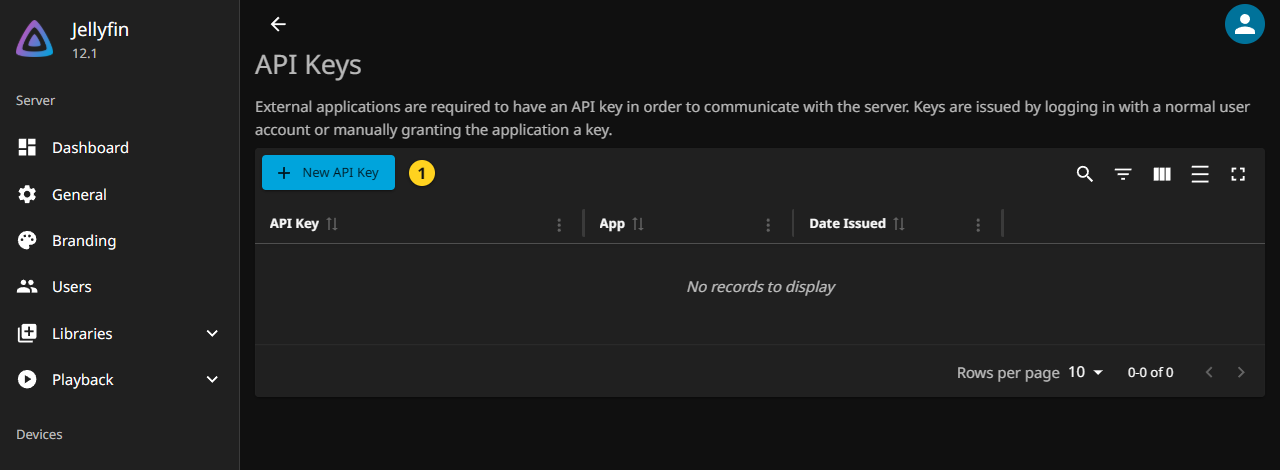
1: Create the temporary key here. Do not put its value into a screenshot, documentation file or terminal command history.
2. Preview and install
Run owpctl setup --web on the machine running Docker. This uses your user’s
configuration directory; the user needs permission to run Docker. For a
system-wide installation, use sudo owpctl --scope system setup --web and
open the one-time URL printed in the terminal yourself if the browser does not
open. The assistant binds only to 127.0.0.1 and expires after 30 minutes.
Open the printed link once and keep that page open: refreshing or reopening
it returns Invalid or consumed setup token. If that happens before
installation, stop and rerun the setup command for a fresh link. When running
the installer over SSH, use the remote browser access instructions.
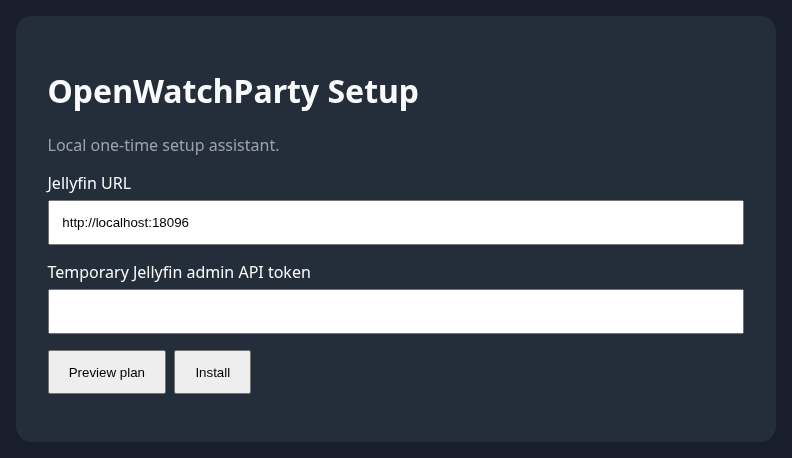
Enter the Jellyfin address reachable from the installer’s machine.
For a local-only test this can be http://localhost:8096; if guests will use
https://jellyfin.example.com, make that address reachable before running
the assistant (the Jellyfin proxy site below is one option), then enter the
public HTTPS address here so the installer’s allowed browser origin matches.
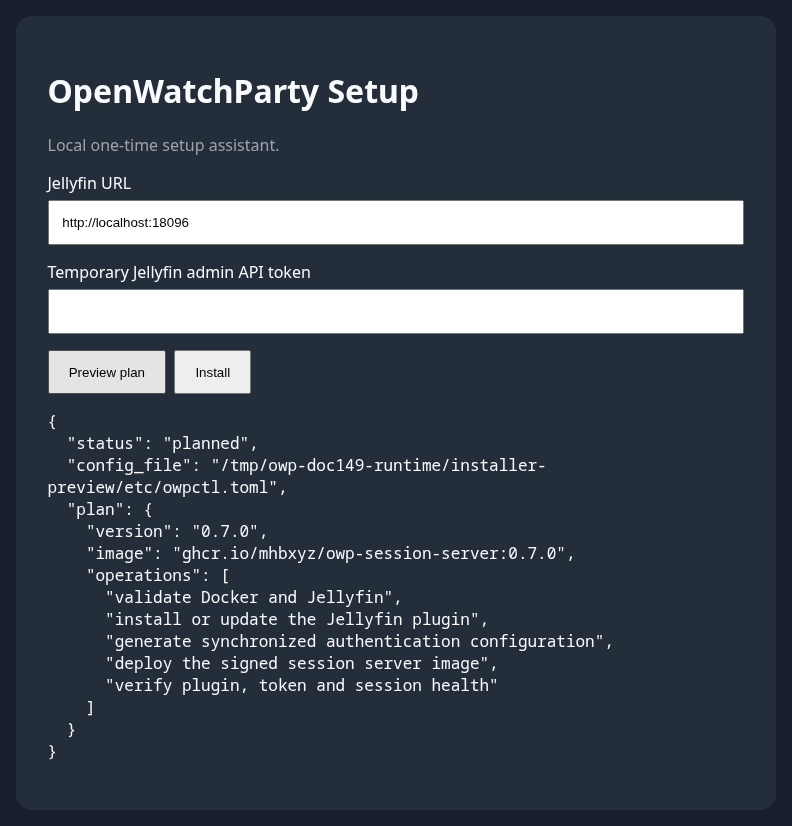
Paste the temporary API key, select Preview plan, and read the operations.
Select Install only when the URL and plan are correct. Keep the terminal
open until installation and checks complete. For the full installer options,
see Guided Setup and owpctl.
The screenshots show the actual 0.7.0 setup form and a preview against the
isolated local demo server. The API token field is blank. Your plan lists the
work owpctl intends to perform; previewing does not install anything.
3. Verify the installation
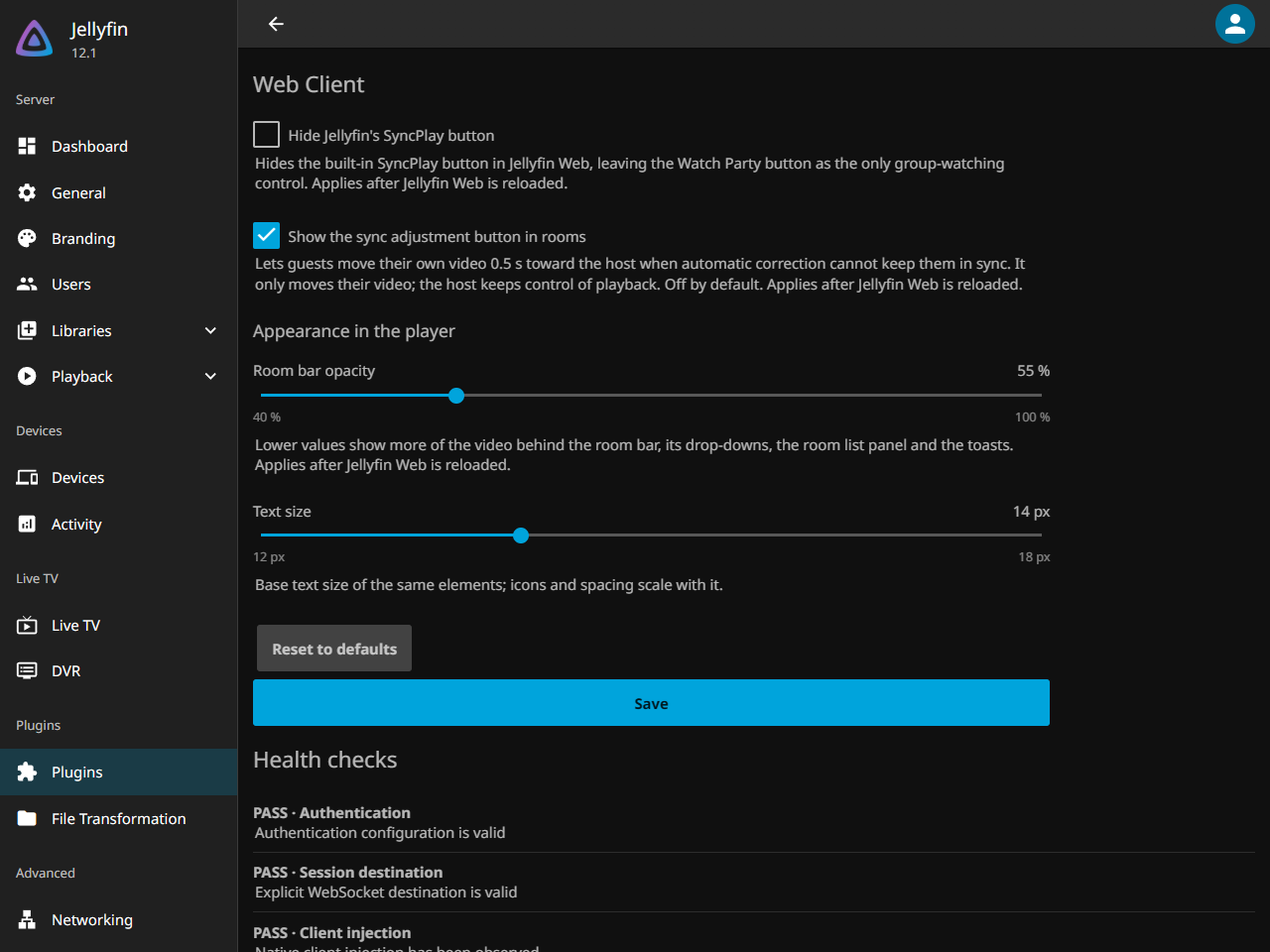
In Jellyfin, open Dashboard → Plugins → OpenWatchParty and run diagnostics.
The plugin, client injection and session server should all report Ready.
If a check is blocked, follow the installation guide
and troubleshooting guide before inviting
anyone. For remote guests, complete the network configuration below and rerun
the checks. Keep the temporary key until that configuration is complete;
then delete it from Jellyfin. If Jellyfin runs in a container, localhost
in a server-side diagnostic means that container, not the Docker host: the
configured destination must be reachable from Jellyfin as well as from each
participant’s browser.
Check that the displayed plugin release and session connection match your installation. On another device, the configured WebSocket URL must be reachable from that device’s browser. The plugin’s Web Client settings also let an administrator adjust the room interface’s opacity and text size.
4. If your guest is on another network
The installer defaults to a session server bound to 127.0.0.1:3000 on its
machine. A guest’s browser cannot connect to your localhost. Publish
the WebSocket securely before following the guest steps. Here is one complete
example with Caddy running on the same host as Jellyfin and the session
server. It assumes Jellyfin is reachable there on 127.0.0.1:8096.
- Point DNS for
jellyfin.example.comandparty.example.comto your server. Open inbound TCP 80 and 443 for Caddy, and install Caddy on the host. Thejellyfin.example.comsite must be working before you use its HTTPS URL in the assistant above; theparty.example.comsite becomes useful once the session server is installed. Keep port 3000 bound only to127.0.0.1. -
Add these site blocks to your Caddyfile (adapt hostnames and Jellyfin’s local port):
jellyfin.example.com {
    reverse_proxy 127.0.0.1:8096
}

party.example.com {
    reverse_proxy 127.0.0.1:3000
}
Caddy obtains TLS certificates and proxies WebSocket upgrades. Reload it after validating the configuration. The proxy must run on the host, or the upstream addresses must be adjusted to its container network.
- In Dashboard → Plugins → OpenWatchParty, set Session Server URL to
wss://party.example.com/ws. The session server’sALLOWED_ORIGINSmust containhttps://jellyfin.example.com; this is why the public Jellyfin address must be used in the installer above when guests are remote. Keep the same authentication configuration on both sides. Ifowpctlmanages this installation, set the public URL withowpctl configure --set session.public-url=wss://party.example.com/ws --api-token-file /path/to/temporary-token-file(include--scope systemif installed system-wide). This updates its managed plugin configuration; the token file must be readable only by you. - From the guest’s network, confirm
https://jellyfin.example.com/web/loads andhttps://party.example.com/healthreturns JSON with"status":"ok". Reload Jellyfin Web and check that the Watch Party panel says Online.
Only the two HTTPS hostnames need to be public. The Jellyfin and session server ports remain local to the host. See Deployment for containerized proxies and other topologies.
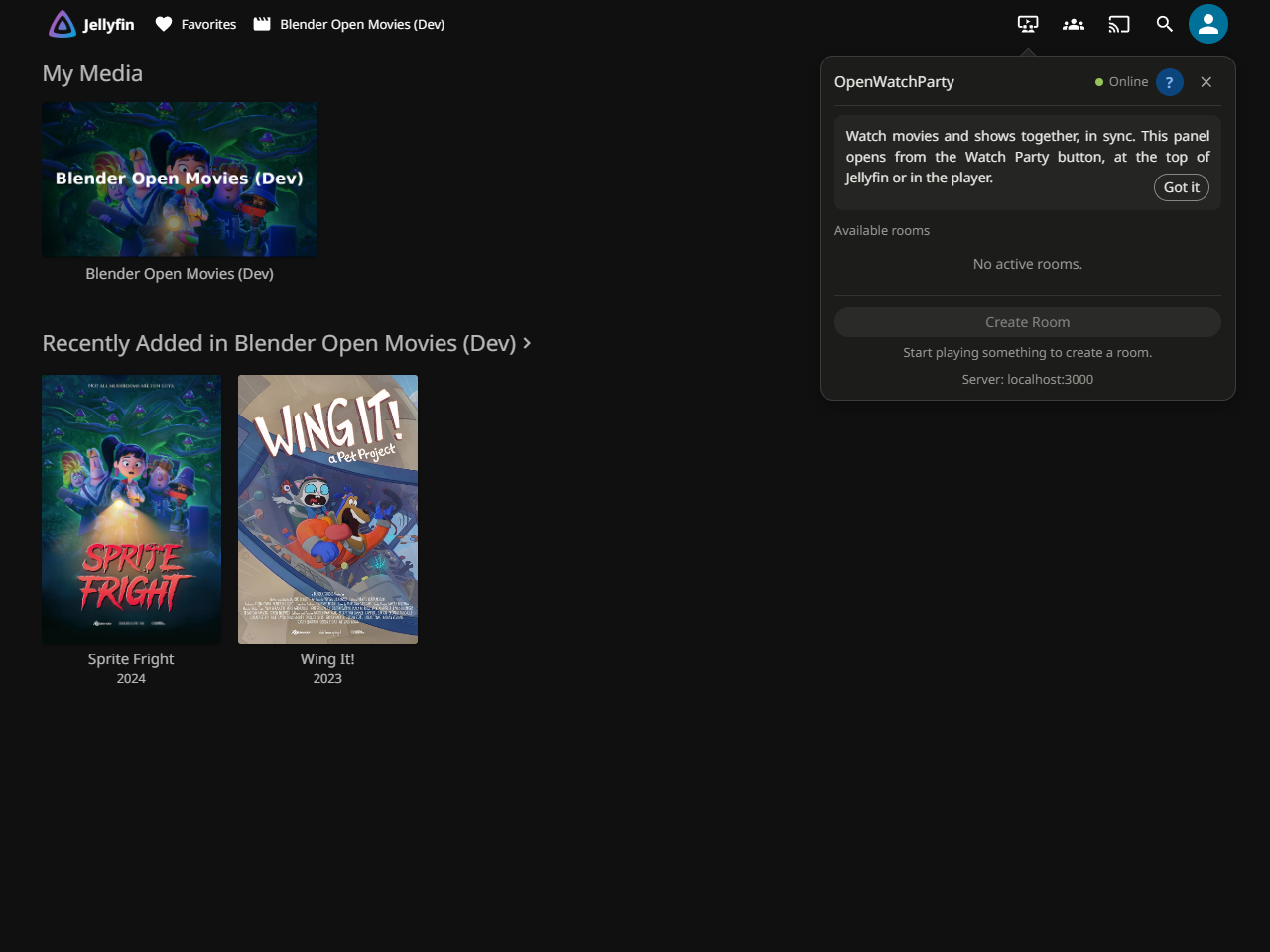
The first time Jellyfin opens
The first time Jellyfin Web runs in a browser after the installation, the Watch Party panel opens by itself below the Watch Party button of the header, with a short help. It does not block anything: select Got it to close the help, or close the panel. It is shown once per browser; the ? in the panel brings the help back.
Host: create a room
As the host, play the same movie your guest can access. For the local demo, choose Wing It! from Blender Open Movies (Dev). Pause while your guest gets ready. Move the pointer over the video to reveal the player header, then select the Watch Party icon (a screen with two viewers) next to SyncPlay and Cast.

1: This is OpenWatchParty’s player button, not Jellyfin’s own SyncPlay button beside it. On the pages that show the Jellyfin app bar, OpenWatchParty adds the same button next to SyncPlay; it opens the same panel.
Check that the panel says Online, then select Create Room. It will
turn into a bar at the top right showing <your username>'s room; select its
people icon to see your name with a Host badge. Keep the movie open while
the guest joins.
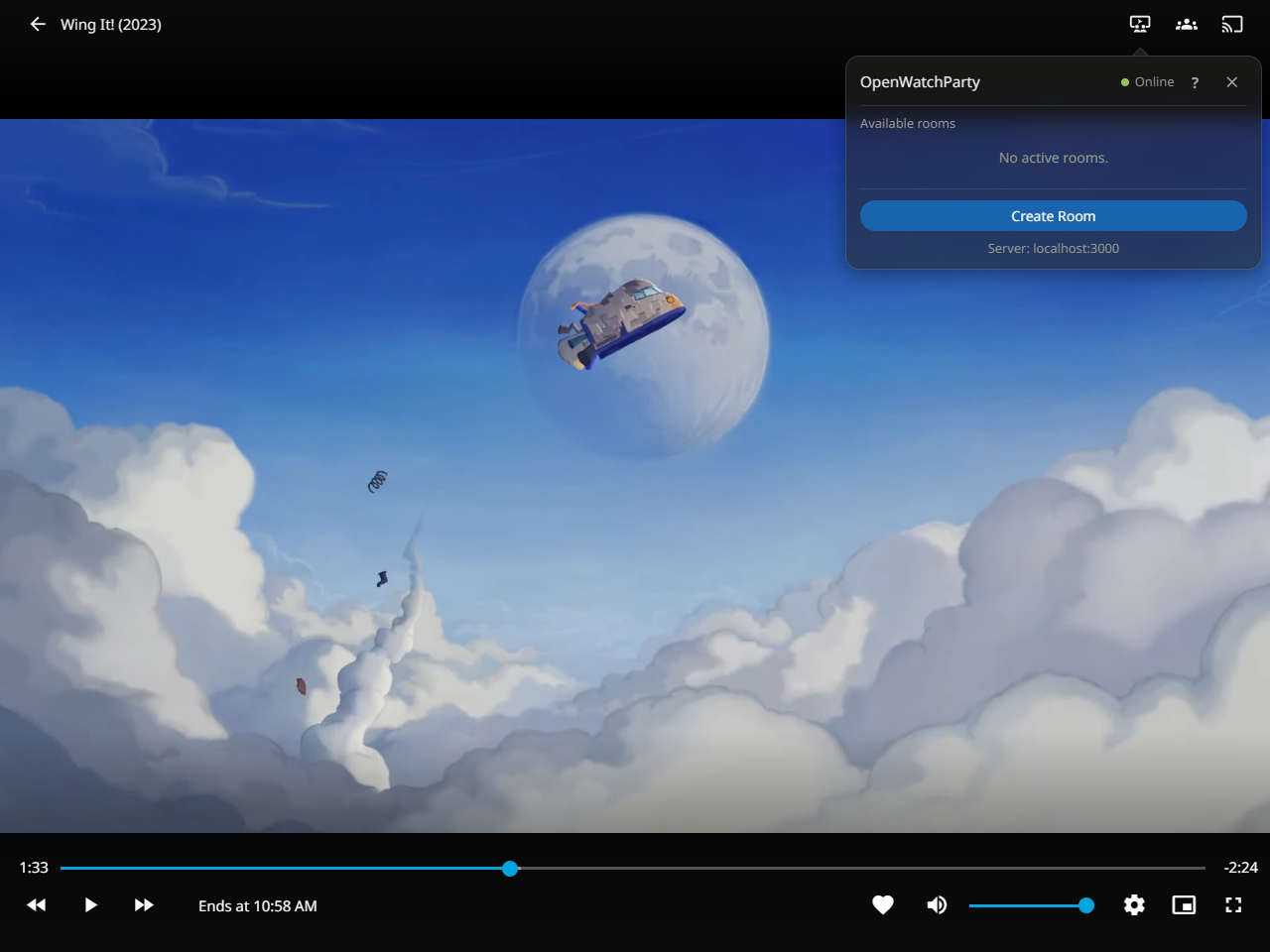
An empty room list before creation is normal. If you see Offline, check the connection troubleshooting.
Guest: find and join the room
In a second browser profile or device, sign in with a different Jellyfin account. On the home page, the Watch Parties row shows the host’s room and movie while the room is active.
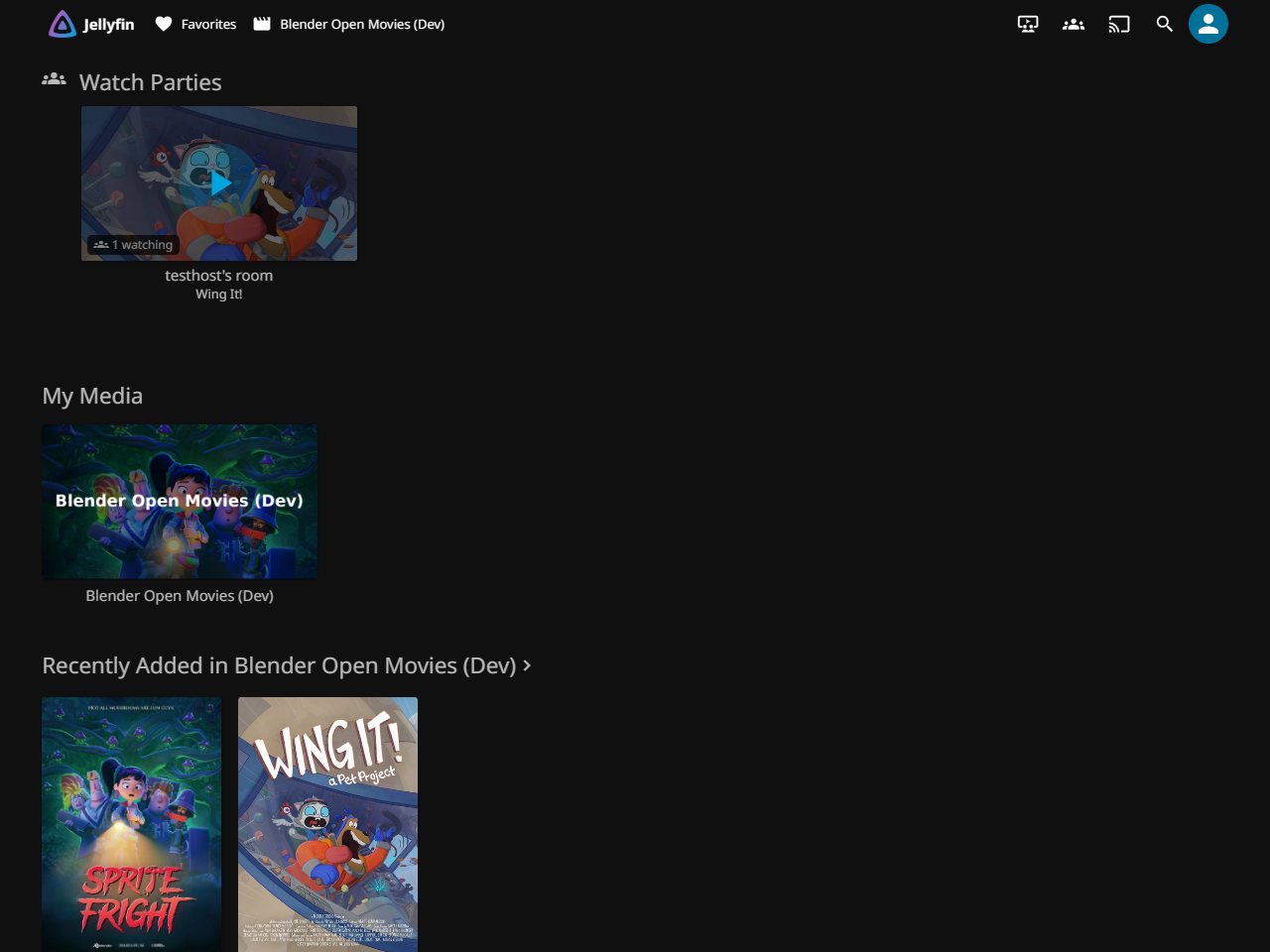
The card’s movie title and host name let you confirm you picked the right room. If the row is absent, reload the page and check that the host is still in the room.
Select the card’s Join button (the play icon on its artwork) to open the
room’s movie and join automatically. Selecting the rest of the card opens the
movie details without joining. For the manual path, start the same movie,
select Watch Party in the player, find <host>'s room under Available
rooms, and select Join.
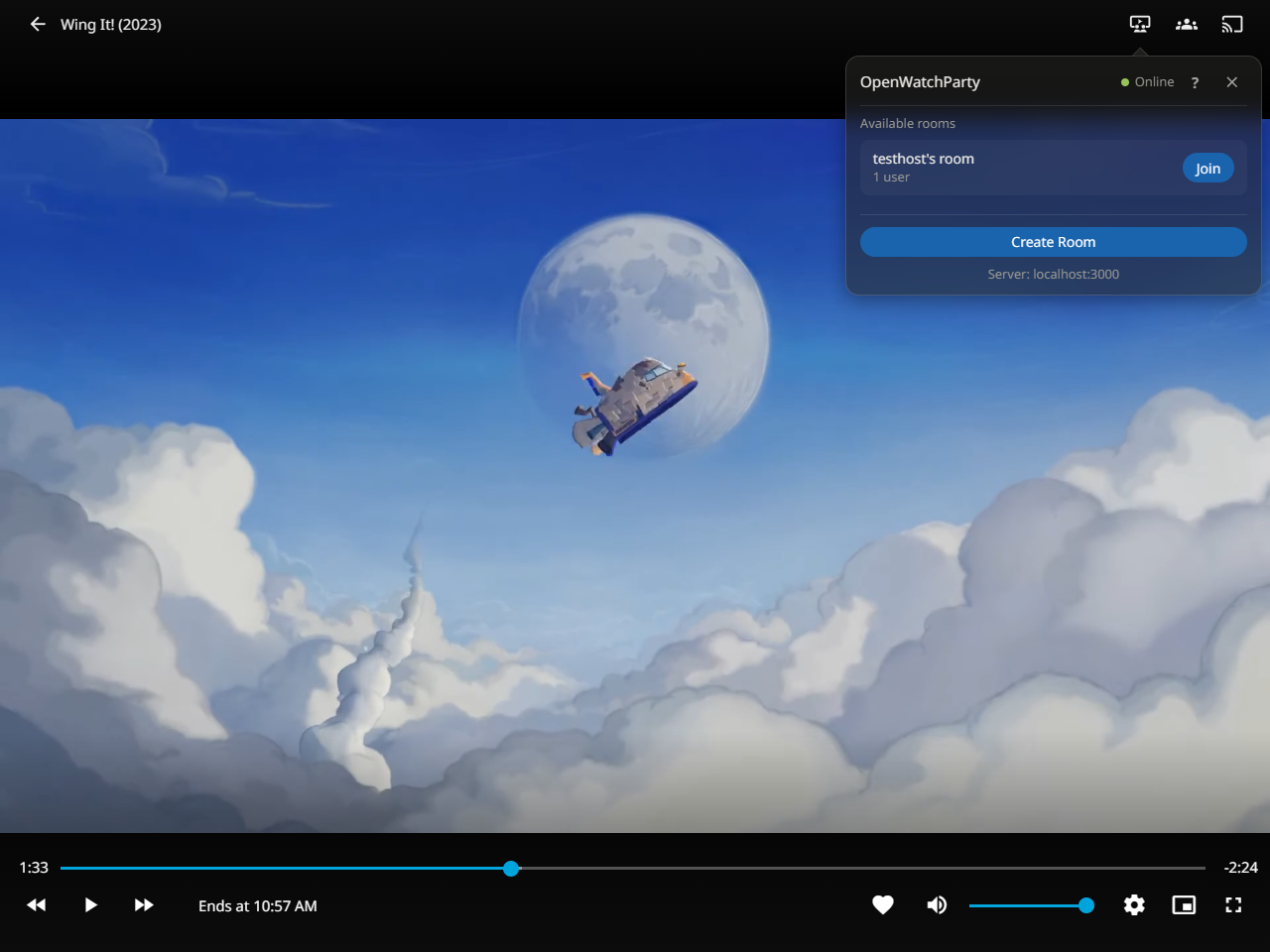
Select Join for the correct host. You can leave and rejoin while the host keeps the movie and room open.
Select the people icon in the room bar: it shows 2 and lists both names, with a Host badge on the host. On the guest side the dot at the left of the bar turns green when in sync (hover it to read In sync). Initial catch-up may take a few seconds. Ask the host to resume playback, then have the guest pause and play once: both actions apply to the room. Seeking is still host-only. Chat opens from the chat icon. The exit icon asks before leaving; a guest can leave, while a host can pass the room to a compatible participant or close it for everyone.
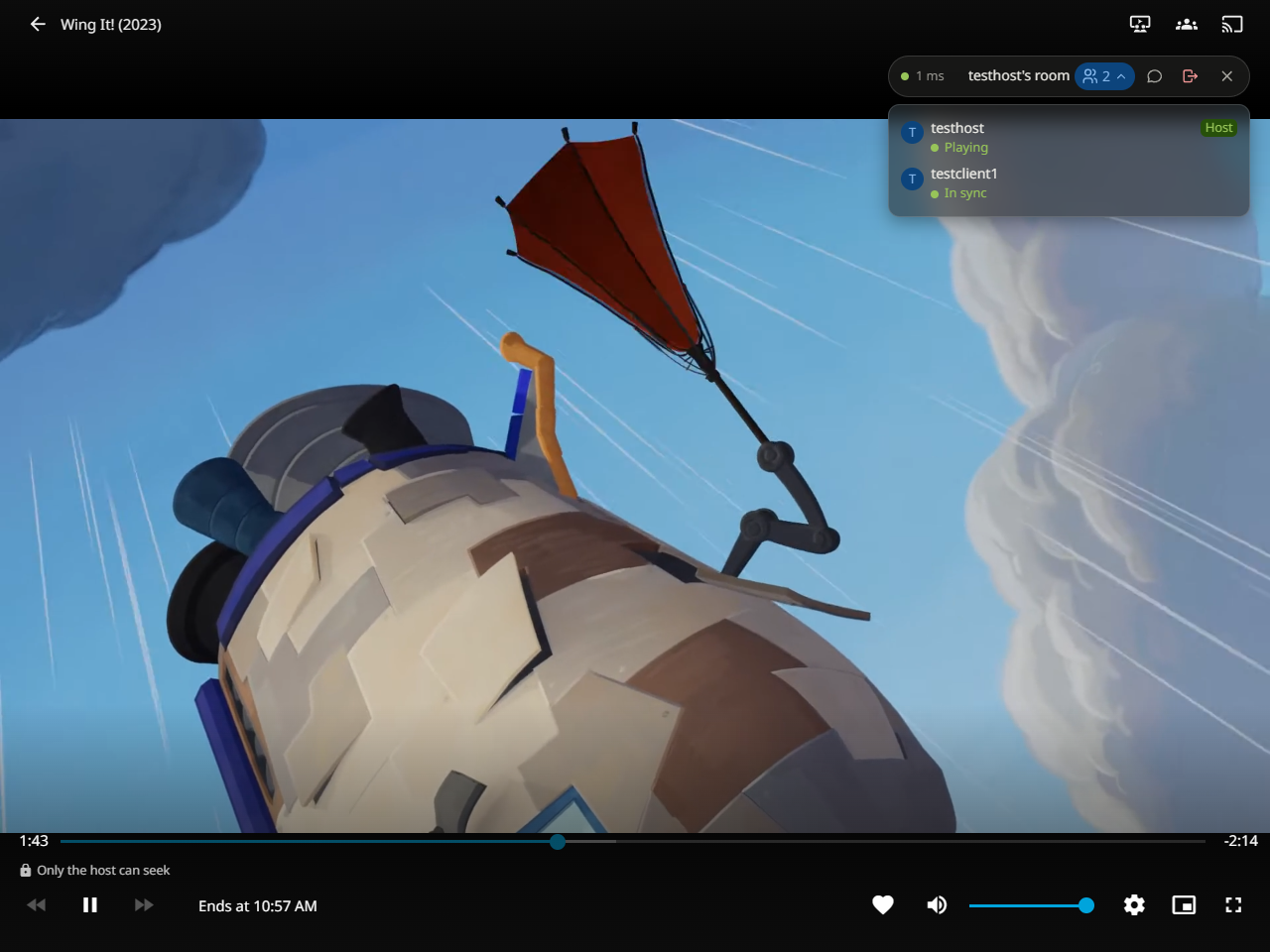
The green In sync state is the confirmation on the guest side.
If the host leaves while a compatible participant is present, the confirmation names the person who will take over. After the host leaves, that participant sees the Host badge and the room stays open.
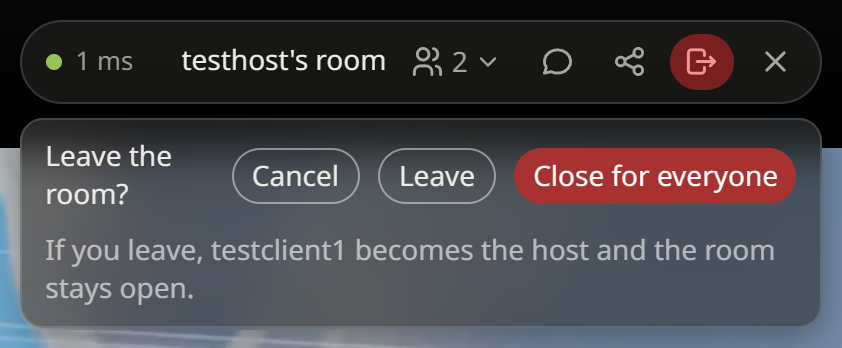
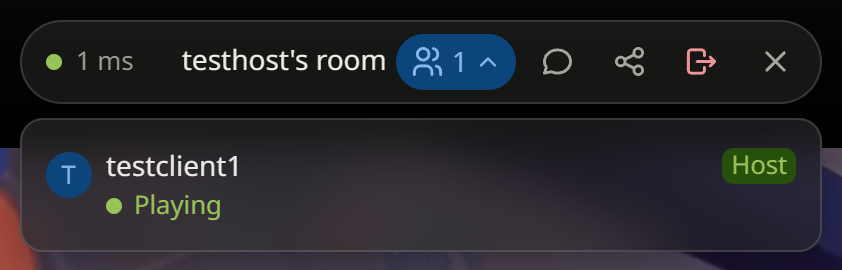
Done: two distinct accounts see the same room and movie, and the guest follows the host. If the guest can play the movie but cannot join, compare the movie on both sides and check the user guide and troubleshooting guide.
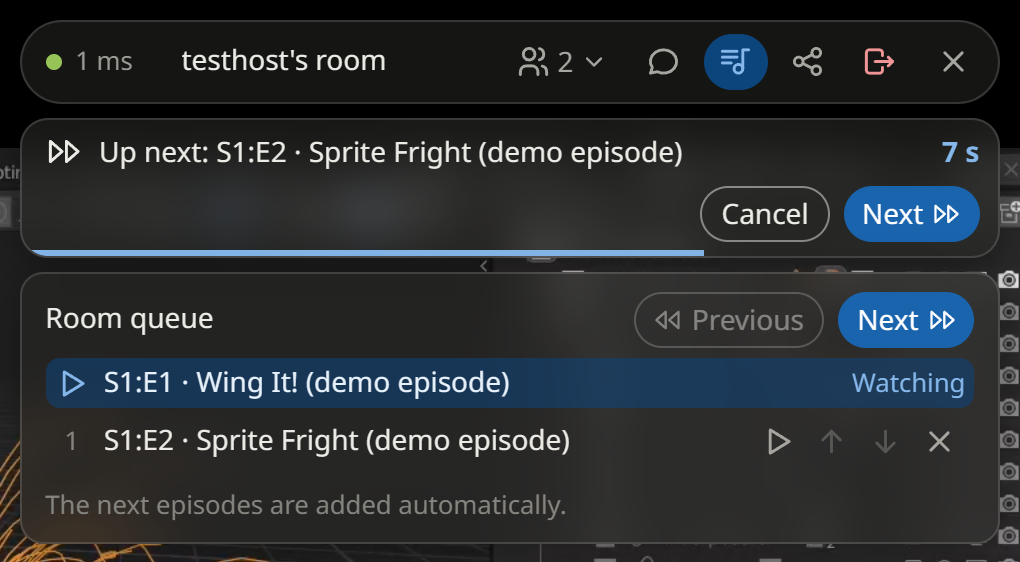
For a series, the host’s player fills a queue with upcoming episodes (up to 20 items total). The Queue control lets the host reorder or remove upcoming episodes; guests can view it. Near the credits, a 10-second Up next strip lets the host cancel the advance or start the next episode immediately. A room that is watching a movie does not show a queue.
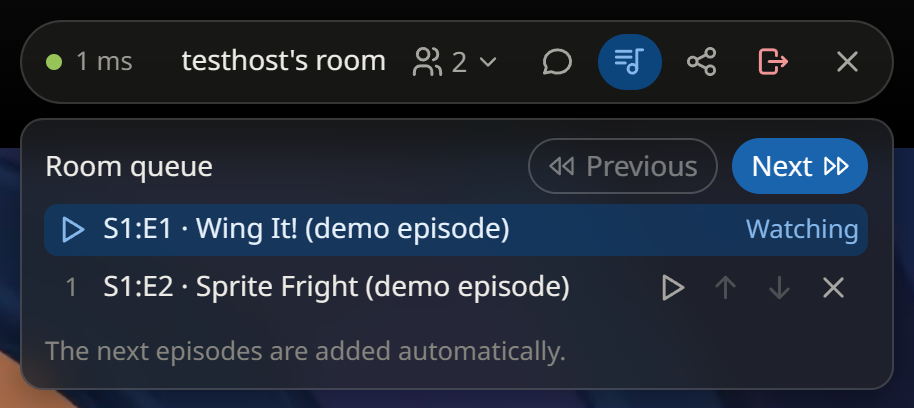
The administrator can change the room interface opacity and text size under Dashboard → Plugins → OpenWatchParty → Web Client. If enabled, the guest’s sync adjustment control nudges only that guest’s video toward the host. See the User Guide for these controls, host reconnect behavior and participant status details.